Prepare your workspace
Create a client-wide key or a key scoped to a device group. Confirm who owns it and which computers belong there.
A connected operational journey from client setup and protected enrollment to endpoint context, direct access and verified outcomes.
Begin with the client organization that will own the endpoints. The platform Super Admin provisions company-level access and handles high-level system responsibilities, while the client owner becomes responsible for endpoint administration. Complete password and authenticator setup, then create groups that reflect how the support team works. Named management users can receive selected endpoint or group assignments; temporary specialists can receive endpoint-specific shares with an expiry. This establishes the people and scope before a computer is installed. The web portal is the administration and observation surface, providing dashboards, licenses, groups, users and endpoint context. A client account is therefore more than a login to a screen: it is the ownership boundary that connects enrollment, visibility and the permissions later used by the installed controller.
Create the protected client or group enrollment key, choose the correct Windows or Mac endpoint build and install it on an owned test computer. Enter the key and an agent name during setup. The server identifies the client from the key and can assign the endpoint to an existing group automatically. Windows assisted setup includes those fields in the installer; Mac enrollment happens in the installed endpoint application after the package is installed. Complete the initial Mac operating-system permissions when screen and input access are required. There is no manual endpoint ID/password pairing step in the current product flow. Each installation establishes its own identity and certificate, while the reusable key remains a protected setup credential. Confirm the resulting client ownership and group membership before proceeding to direct access.
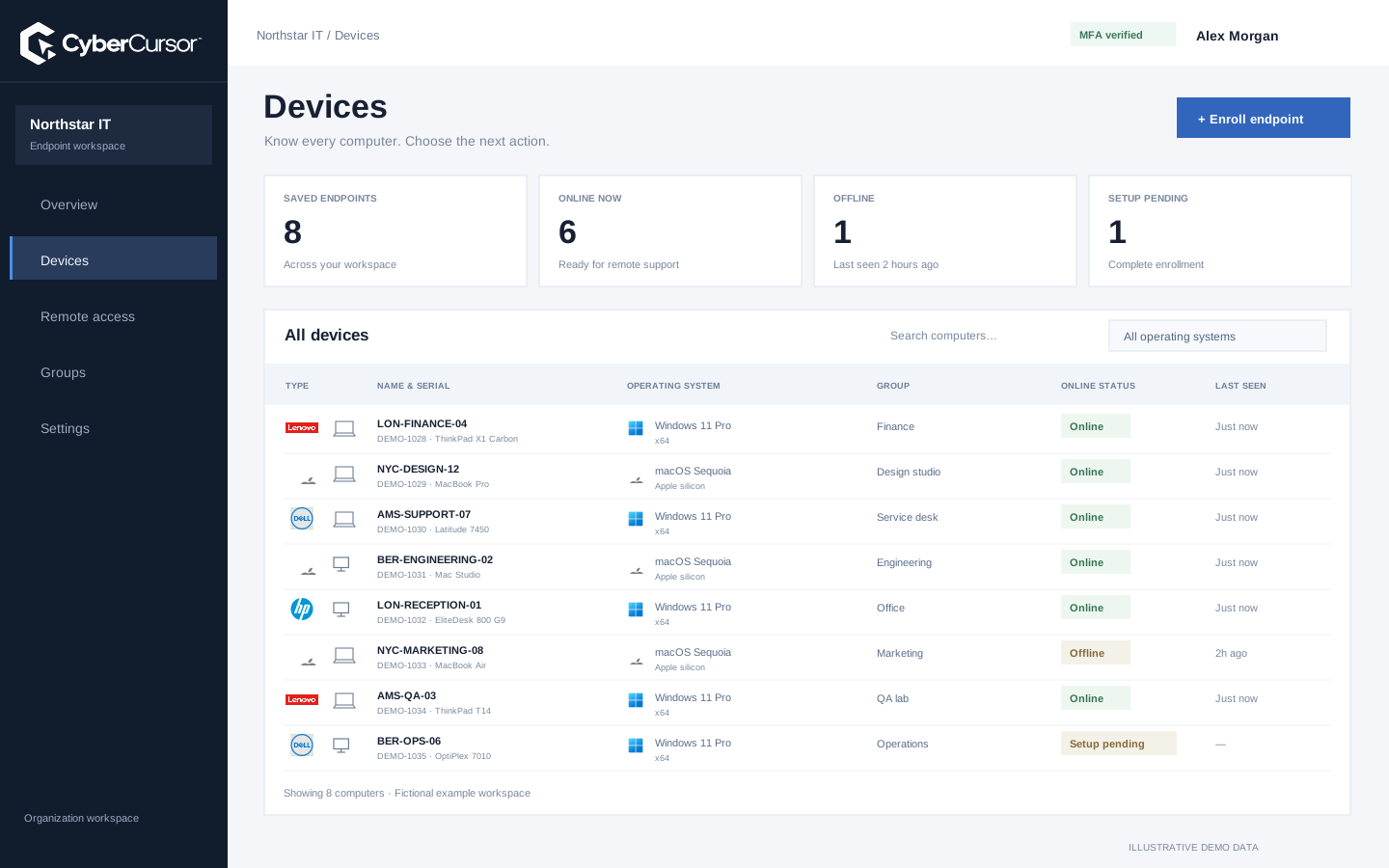
After authenticated contact, the endpoint supplies hardware, operating-system, software, process and performance observations to its client workspace. Open its profile to understand manufacturer, model, serial, architecture, resource measurements and available OS updates where reported. The interface distinguishes real zeros from unavailable counters and current information from last-known snapshots. Review collection and receipt timing before acting on a reading, especially for a laptop that has been asleep or disconnected. Offline demo samples remain illustrative records and do not generate live monitoring. Use the portal to prepare an investigation or plan administration; it does not automatically start a remote session when a profile is opened. This stage answers the practical question of which machine is involved and what reliable information is available before an operator intervenes.
Create a client-wide key or a key scoped to a device group. Confirm who owns it and which computers belong there.
Choose the correct Windows or Mac architecture. Enter the license key and an agent name in the endpoint setup.
The enrolled record appears in the client workspace. Complete local OS permissions, then use the installed controller.
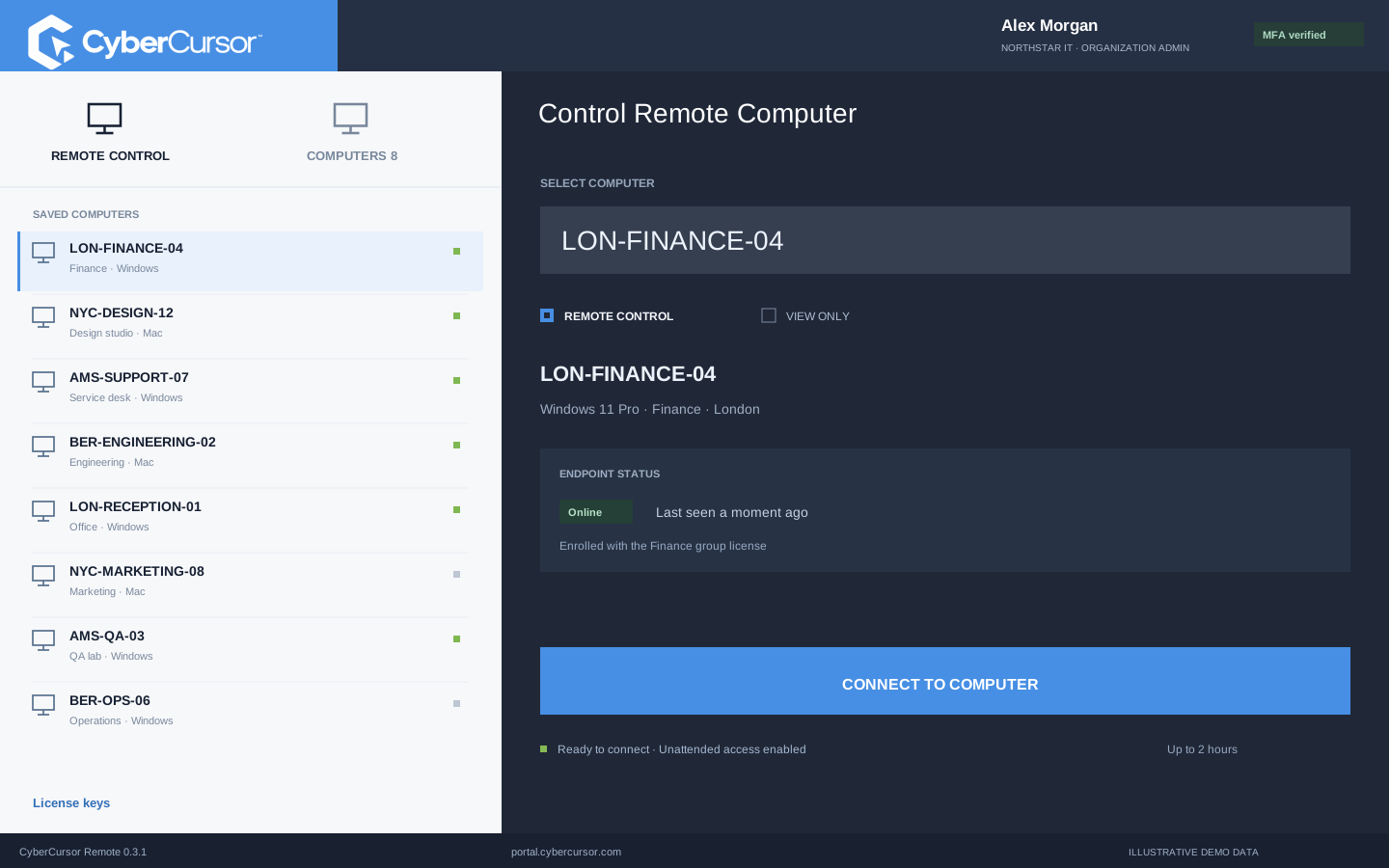
Install CyberCursor Remote on the operator’s Windows computer or Mac and sign in to the production client account with the required authentication. Select a real online endpoint within the operator’s current scope, then request the permitted view or control session. Direct screen access, keyboard and mouse input, terminal commands and file modifications are handled by the installed software rather than the browser portal. Current scope, MFA, endpoint readiness and guest expiry remain relevant; having an app installed does not override permission. Mac endpoint screen/input setup follows local operating-system controls. Published installers and sign-in checks are separate from actual production screen and input acceptance, so verify the behavior on the owned test machine and end the session when the agreed support task is finished.
Different tasks belong to different operational paths. The portal provides client and device administration, monitoring context, licenses and the existing reviewed automation workflows. Its file explorer supports authorized read-only browsing and downloads. CyberCursor Remote handles interactive uploads, folder creation, rename, removal and bounded terminal commands under the relevant administrator requirements. Current file transfers are limited to 512 KiB and commands to sixty seconds. A repeatable fleet change belongs in the reviewed automation preview, with an explicit artifact, targets, limits and outcome checks rather than an improvised series of support commands. Broader package deployment and security-provider coverage have their own acceptance stages. Select the path that matches the intended effect and record the endpoint result instead of treating every action as interchangeable because it appears near the same device profile.
Organizations, clients and high-level administration.
Assigned endpoints, groups, enrollment keys and operational workflows.
Explicitly shared endpoints with a scoped expiry, rather than whole-client access.
A useful endpoint workflow ends with an observation that the intended result occurred. For direct support, confirm actual screen and input behavior and the user’s technical outcome. For reporting, compare the profile with local machine facts. For a file or command action, inspect the resulting state using disposable test data and the appropriate limits. Include offline behavior, revoked assignments and expired guest shares in the evaluation. Keep a small platform-specific acceptance record before extending the group or number of endpoints. CyberCursor’s public pricing uses one monthly rate for the whole fleet: $5 at one to one hundred endpoints, $3 at one hundred and one to one thousand, and $1 from one thousand and one onward. Contact connect@cybercursor.com to align a pilot’s devices, workflows and next release requirements.
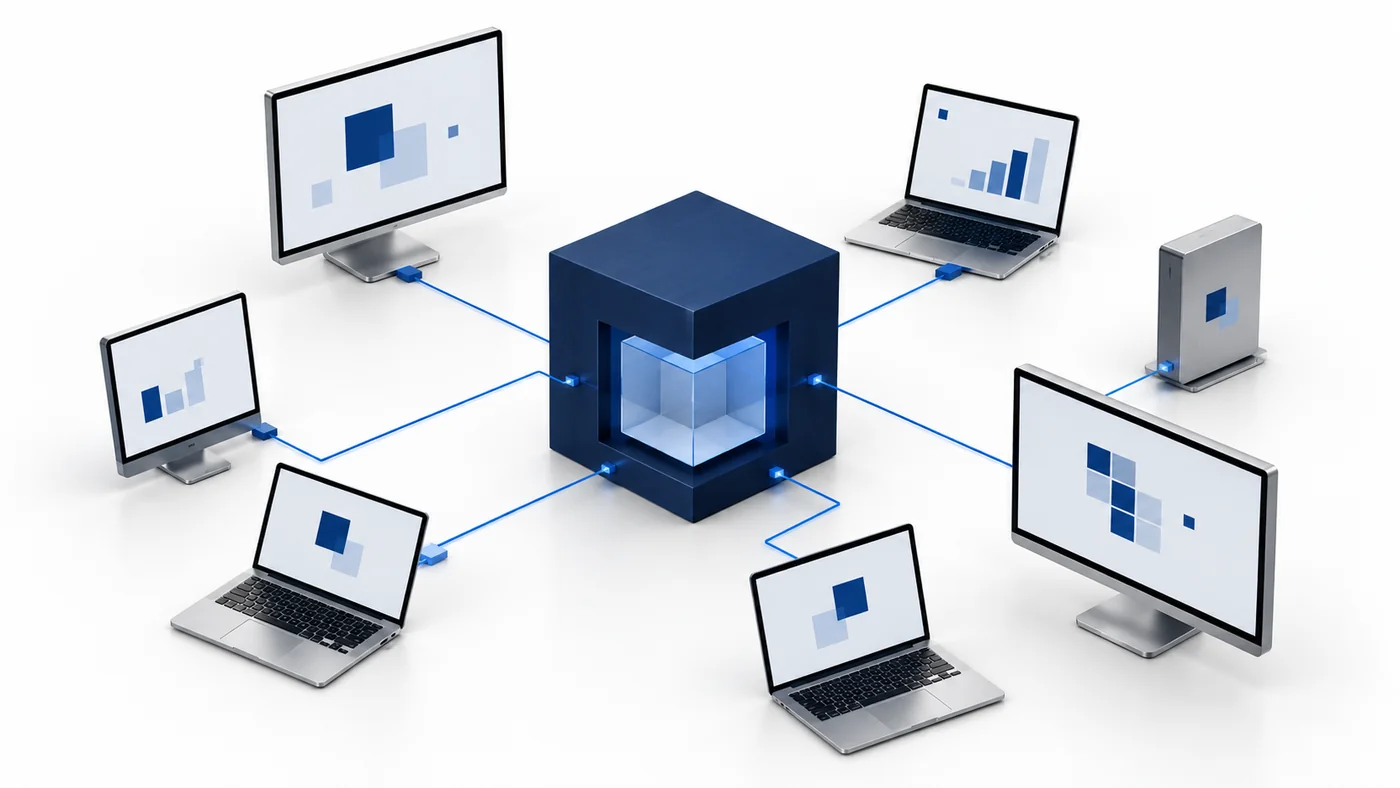
Operational details matter as much as the interface.
Install CyberCursor Remote, the operator controller, for your Windows or Mac platform and architecture.
Install CyberCursor Endpoint and enter a protected client or group license key plus an agent name. Complete the required local operating-system setup.
No. The portal is for administration and observation. Interactive screen access, terminal commands and file changes require the installed controller.
Offline sample records cannot produce live monitoring or remote-control sessions. Enroll real owned test endpoints for actual acceptance.
Connect this workflow to the rest of your endpoint workspace.
Start with a conversation about your fleet, your workflows, and a controlled pilot.