Management portal
Fleet overview, performance, inventory, groups, licenses and administrative context. File listings are read-only.

Read-only visibility in the web portal; deliberate file operations from the installed Windows or Mac controller.
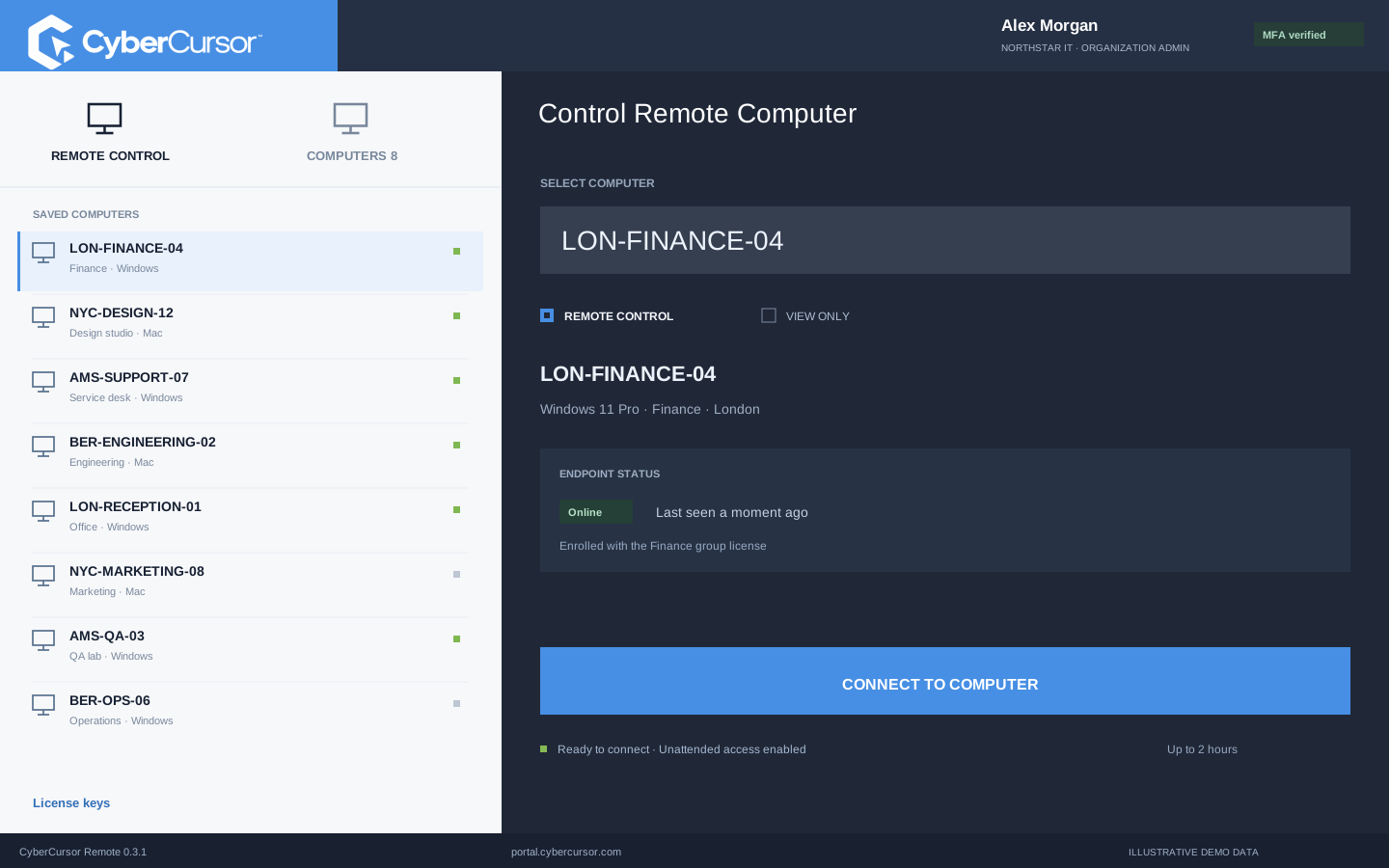
Finding a log or configuration file is often the first useful step in a support case. CyberCursor lets an authorized client administrator browse the endpoint file system and download a permitted file from the portal without turning the browser into a general file-editing surface. The same endpoint context remains visible: the selected machine, current availability and report timing. If the task requires an upload, a new folder, a rename or a removal, open CyberCursor Remote on your own Windows computer or Mac. This division supports quick investigation from the portal while keeping interactive changes inside the installed management software. Establish the exact device and path before any action, and record whether the task is an inspection, a transfer or a modification with an expected local effect.
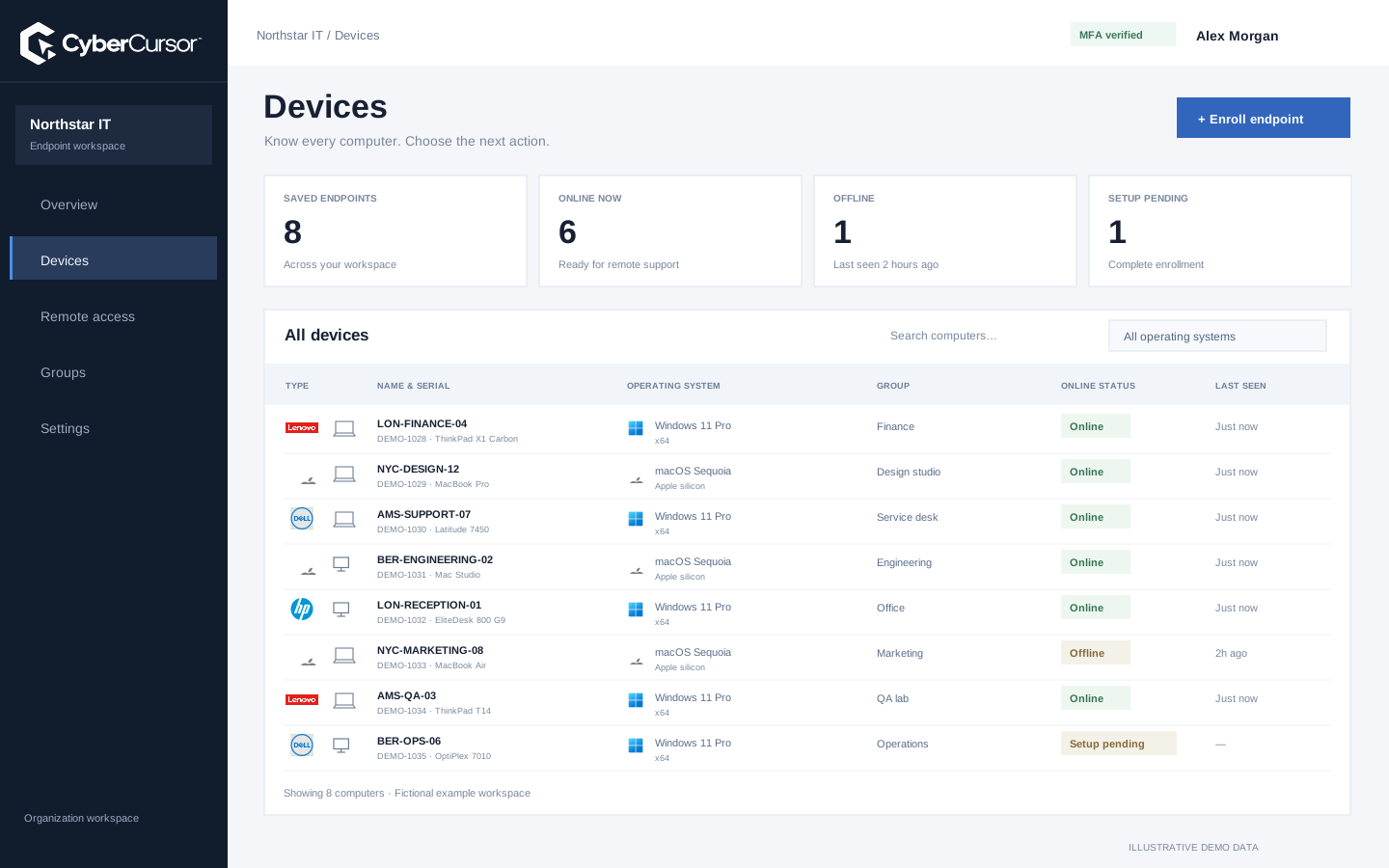
Directory navigation should make it difficult to confuse your local computer with the endpoint. The file workflow is tied to the selected enrolled device and uses the agent connection to request a listing. Review the endpoint name and intended path before opening a directory, especially when several computers use similar folder structures. An unavailable device cannot return a fresh listing merely because an old profile remains visible. The pilot preserves the existing administrator and recent-MFA requirements for these operations; a temporary guest share does not grant file-management privileges. For a support investigation, start with a narrow, relevant folder instead of collecting an entire user profile. Keep private material within your organization’s handling rules and use a local save destination appropriate to the purpose of the download.
CyberCursor Remote uses a native save dialog for endpoint file downloads. The transfer workflow validates the reported filename, size and SHA-256 value so the operator has a concrete way to verify the resulting local file. Choose a destination that your support process can account for, and compare the downloaded artifact with the intended endpoint file when verification matters. The current pilot caps file transfers at 512 KiB. This is suitable for small configuration files and diagnostic text, not a substitute for a large-file distribution or backup platform. A checksum confirms the bytes associated with the transfer; it does not establish whether the file is safe or whether its contents are appropriate to share. Larger resumable transfers remain separate product work.
Fleet overview, performance, inventory, groups, licenses and administrative context. File listings are read-only.
Windows and Mac apps for interactive screen access, terminal commands and bounded file modifications.
Identity, reports and authorized actions on the owned computer. Availability depends on endpoint readiness and OS permissions.
Use CyberCursor Remote when a support task calls for a file upload, folder creation, rename or removal. These operations remain subject to client administrator authorization, recent MFA, endpoint availability and the operating-system permissions of the endpoint service. The browser portal does not expose modification controls and the server refuses those interactive changes through the browser channel. Define the destination path and the expected effect before submitting an action. Current uploads follow a no-overwrite policy, so replacing an existing file requires a deliberate workflow rather than silently discarding its contents. After a change, request a fresh listing or download the resulting small file to confirm its state. A successful request is part of the record; the observed endpoint result is what closes the support task.
A technician changing one configuration file and an administrator deploying a reviewed script are different operational workflows. The installed controller handles interactive file actions on a selected endpoint. Approved automation in the portal can still change files as part of an administrative job, with the existing artifact, target and approval rules. Moving an action into a script does not remove the need to define its effect, inspect the target list or verify the outcome. Choose the workflow that matches the task: a small individual intervention, or a repeatable change with an explicit fleet scope. Keep a rollback or recovery instruction alongside any configuration change. The distinction gives teams a practical way to manage one-off support while preserving a separate process for coordinated endpoint operations.
Organizations, clients and high-level administration.
Assigned endpoints, groups, enrollment keys and operational workflows.
Explicitly shared endpoints with a scoped expiry, rather than whole-client access.
Evaluate file operations in a dedicated folder on an owned test endpoint. Begin with a harmless text file smaller than the transfer limit, browse to it and download it through the native save dialog. Confirm its content and checksum before testing a new folder or a separate upload. Use unique names so the no-overwrite behavior can be observed without risking an existing file. Then test a rename and removal only within the disposable folder, and inspect the fresh listing after each result. Repeat on the Windows and Mac environments that your team intends to support, because local permissions and paths differ. Record any action that remains unavailable in your environment. For pilot assistance or larger transfer requirements, send the intended workflow to connect@cybercursor.com.
Operational details matter as much as the interface.
Interactive uploads, folder creation, rename and removal require the installed controller. The portal supports authorized read-only browsing and file downloads.
The pilot limits individual file transfers to 512 KiB. Full-size resumable transfers are separate work and are not advertised as available today.
No. A guest remote share does not grant file-management or terminal permissions. Current file operations require client administrator access and recent MFA.
The current endpoint workflow uses a no-overwrite policy. Plan a deliberate replacement process and verify the resulting endpoint state.
Connect this workflow to the rest of your endpoint workspace.
Understand Windows and Mac endpoints with hardware, operating-system, software and identity details in one client workspace.
Explore FEATURESPILOTInvestigate CPU, memory, storage, network and process activity with endpoint reports and clear freshness.
Explore FEATURESPILOTBrowse endpoint folders in the portal and use CyberCursor Remote for authorized file uploads and modifications.
ExploreStart with a conversation about your fleet, your workflows, and a controlled pilot.