Prepare your workspace
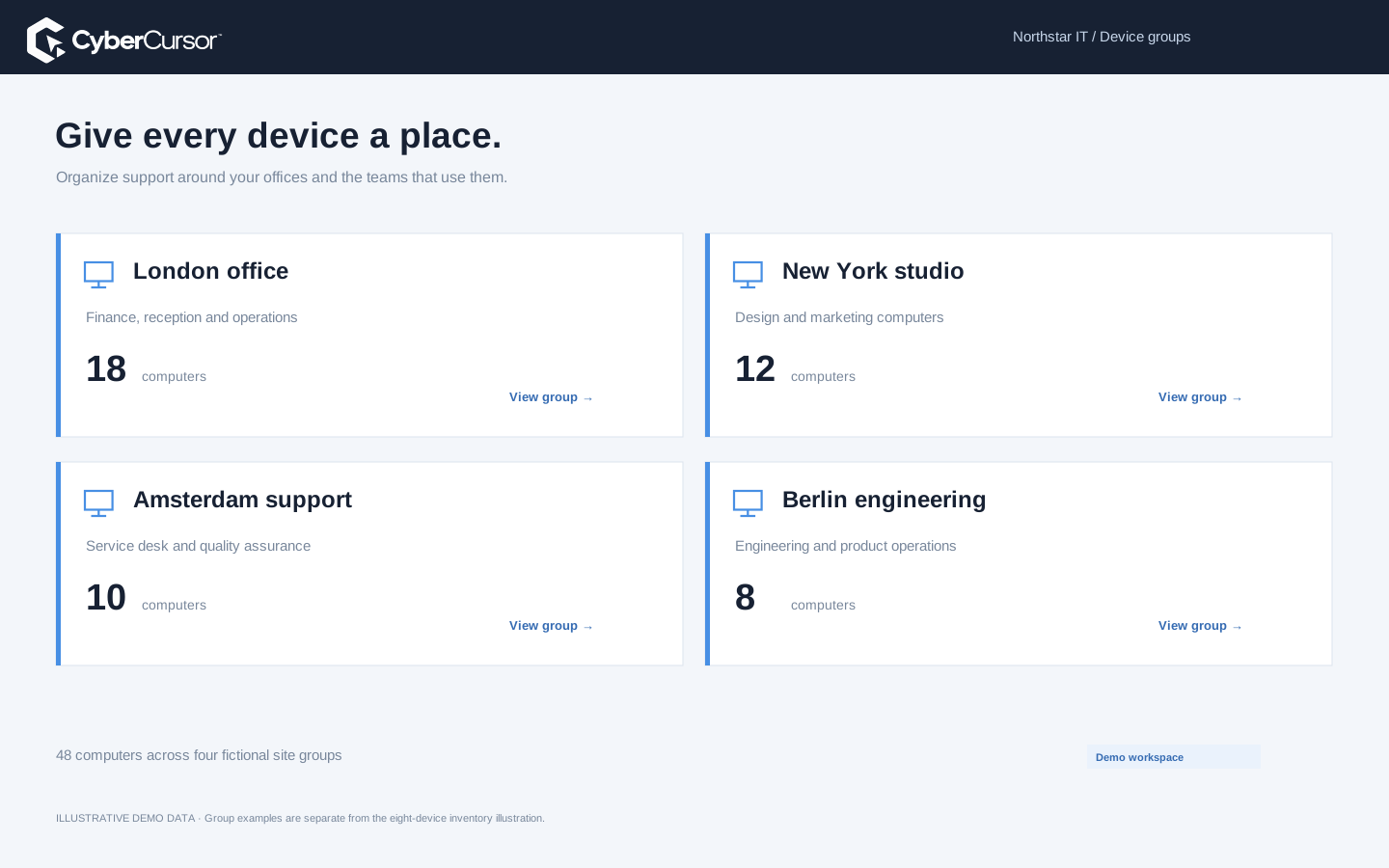
Create a client-wide key or a key scoped to a device group. Confirm who owns it and which computers belong there.

Replace manual ID-and-password pairing with enrollment that places each endpoint into its client workspace and optional group.
CyberCursor Endpoint setup asks for a license key and an agent name. The key identifies the authorized client and, when it is a group key, the intended group. The agent name gives the device a useful operational label without making an operator copy an endpoint ID and password into a separate pairing screen. After enrollment and authenticated contact, the endpoint appears in the client workspace. Remote access still follows the operator’s current account permissions, MFA and the endpoint’s availability. This makes installation simpler while keeping enrollment separate from permission to control a device. Start by choosing the client or group structure, then install on an owned Windows or Mac test endpoint and confirm its reported identity before beginning direct access through CyberCursor Remote.
Each client organization can have one active primary enrollment key. Use that key when endpoints should enter the client workspace and be grouped later. Additional keys can be created for existing groups, allowing a deployment team to place a store, office or test ring correctly during installation. Group keys are reusable and independently revocable, so a team can retire one deployment credential without changing the enrollment route for another site. Keys do not expire by default, but the company’s active plan, subscription state and endpoint limit remain separately enforced. An enrollment key is therefore neither a payment receipt nor an unlimited entitlement. Give each group key a clear deployment purpose and record who receives it, how it is delivered and when it should be retired.
On Windows, the assisted endpoint installer includes the key and agent-name fields. On Mac, install the endpoint package and enter those values in the installed CyberCursor Endpoint application. The macOS package installation and the endpoint’s first-party enrollment form are separate steps, so plan the employee or technician handoff accordingly. Mac screen access also requires the initial operating-system permissions for Screen Recording and Accessibility. The product does not bypass those local controls. Choose the correct processor architecture on both platforms: x64 or ARM64 on Windows, Apple silicon or Intel on Mac. The published builds are pilot installers, with release signing and macOS notarization still pending. Compare the download’s published checksum and evaluate the complete installation flow on a representative owned device.
Create a client-wide key or a key scoped to a device group. Confirm who owns it and which computers belong there.
Choose the correct Windows or Mac architecture. Enter the license key and an agent name in the endpoint setup.
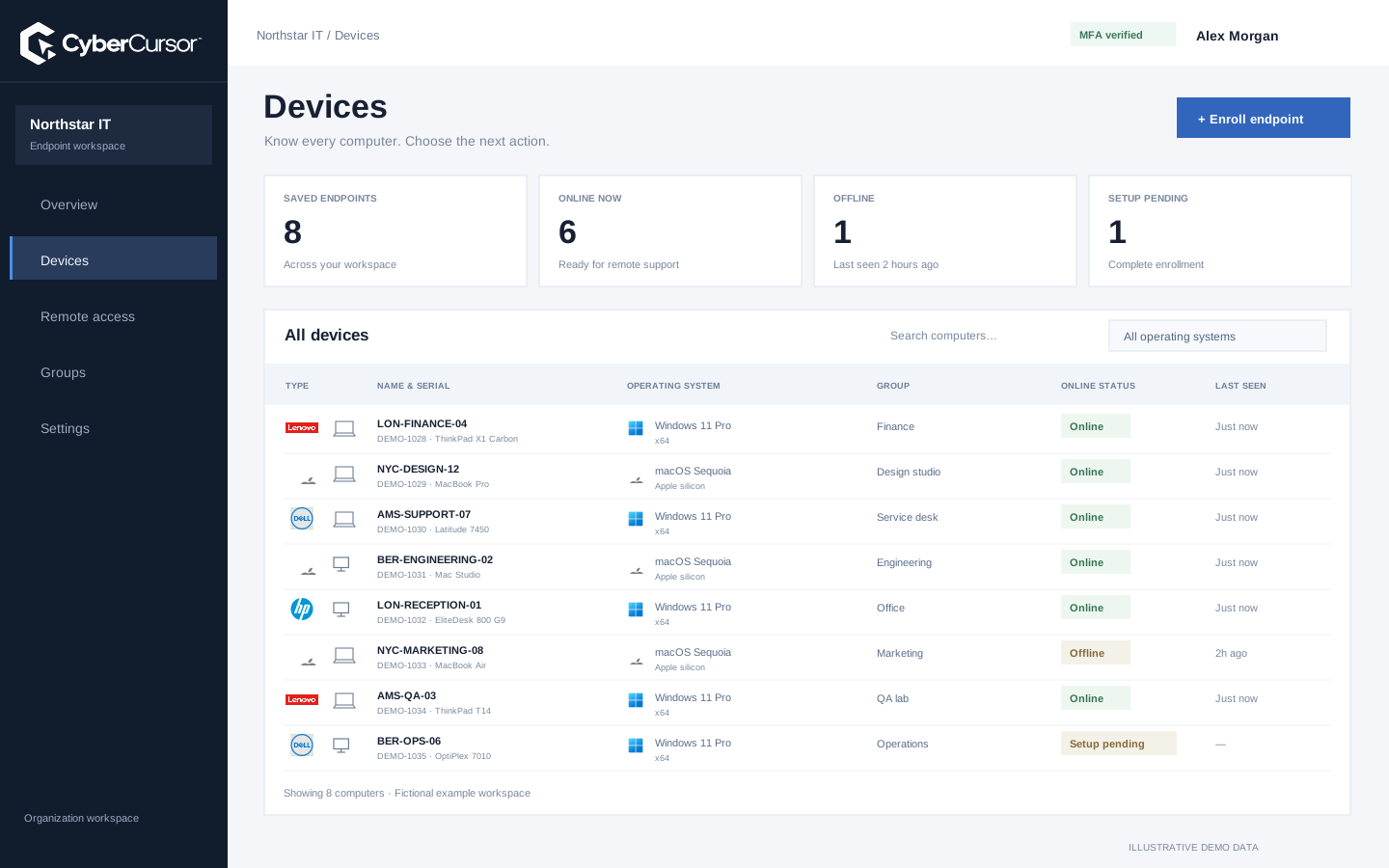
The enrolled record appears in the client workspace. Complete local OS permissions, then use the installed controller.
For managed Windows deployment, the pilot supports a protected input file containing the license key and the chosen agent name. The silent installer receives the input file’s path rather than a key exposed directly in command-line arguments. A corresponding installed Mac setup command can read protected enrollment input under administrator authority. Your deployment system is responsible for delivering that temporary file securely and removing it after successful setup. Keep it out of public shares, ticket attachments and installation logs. Record installer exit status, then verify the enrolled endpoint’s client ownership, group membership and first authenticated reports. The fact that a silent installer process exits does not establish healthy remote capture. Bulk planning should include a small platform-specific canary and a recovery instruction for incomplete setup.

Revoking an enrollment key blocks future installations through that credential and invalidates outstanding unused setup grants. It does not silently disconnect every endpoint that previously used the key. Existing devices keep their individual enrolled identities and continue to follow their current client ownership and access rules. If the intention is to stop access to an existing machine, disable its local access or revoke the endpoint through the client workflow. Replacing a primary key means revoking the old one and creating a new primary key. This separation makes credential rotation practical during a deployment: the team can retire an installation secret while preserving legitimate enrolled devices. Review both the key’s future use and the device’s continuing ownership when a technician, site or external deployment partner leaves the project.
Organizations, clients and high-level administration.
Assigned endpoints, groups, enrollment keys and operational workflows.
Explicitly shared endpoints with a scoped expiry, rather than whole-client access.
A useful acceptance test follows the entire journey from key creation to a connected endpoint. Create a test group and its key, choose a meaningful agent name, install the correct build and complete any local permissions. Confirm that the endpoint appears once in the expected client and group. Check its hardware identity and fresh monitoring reports before opening CyberCursor Remote. Then evaluate screen and input behavior on the owned machine with the intended operator role. Revoke a disposable key and confirm that new setup is refused while the already enrolled test device retains its identity. Keep the results separate from offline sample records and from package-content checks alone. Contact connect@cybercursor.com with your deployment tool, platform mix and planned acceptance sequence.
Operational details matter as much as the interface.
No. It authorizes installation into a client or group. Remote access follows the operator’s account scope, MFA, endpoint state and view/control permission.
A client can have one active primary key plus additional independently revocable keys for existing groups.
No. It blocks future setup and unused enrollment grants. Existing endpoints must be disabled or revoked separately when access should end.
No. Anyone holding it can attempt enrollment into its client or group. Deliver keys through a protected deployment process and remove temporary input files.
Connect this workflow to the rest of your endpoint workspace.
Understand Windows and Mac endpoints with hardware, operating-system, software and identity details in one client workspace.
Explore FEATURESPILOTInvestigate CPU, memory, storage, network and process activity with endpoint reports and clear freshness.
Explore FEATURESPILOTBrowse endpoint folders in the portal and use CyberCursor Remote for authorized file uploads and modifications.
ExploreStart with a conversation about your fleet, your workflows, and a controlled pilot.