14 days. Your first 5 endpoints. No credit card required.Start your free trial
THE CYBERCURSOR PLATFORM

One connected workspace.
Every endpoint in view.

Bring desktop access, device intelligence, reviewed operations and security context together. Give your team a clear path from understanding a computer to supporting the person behind it.

14 days. No credit card required.

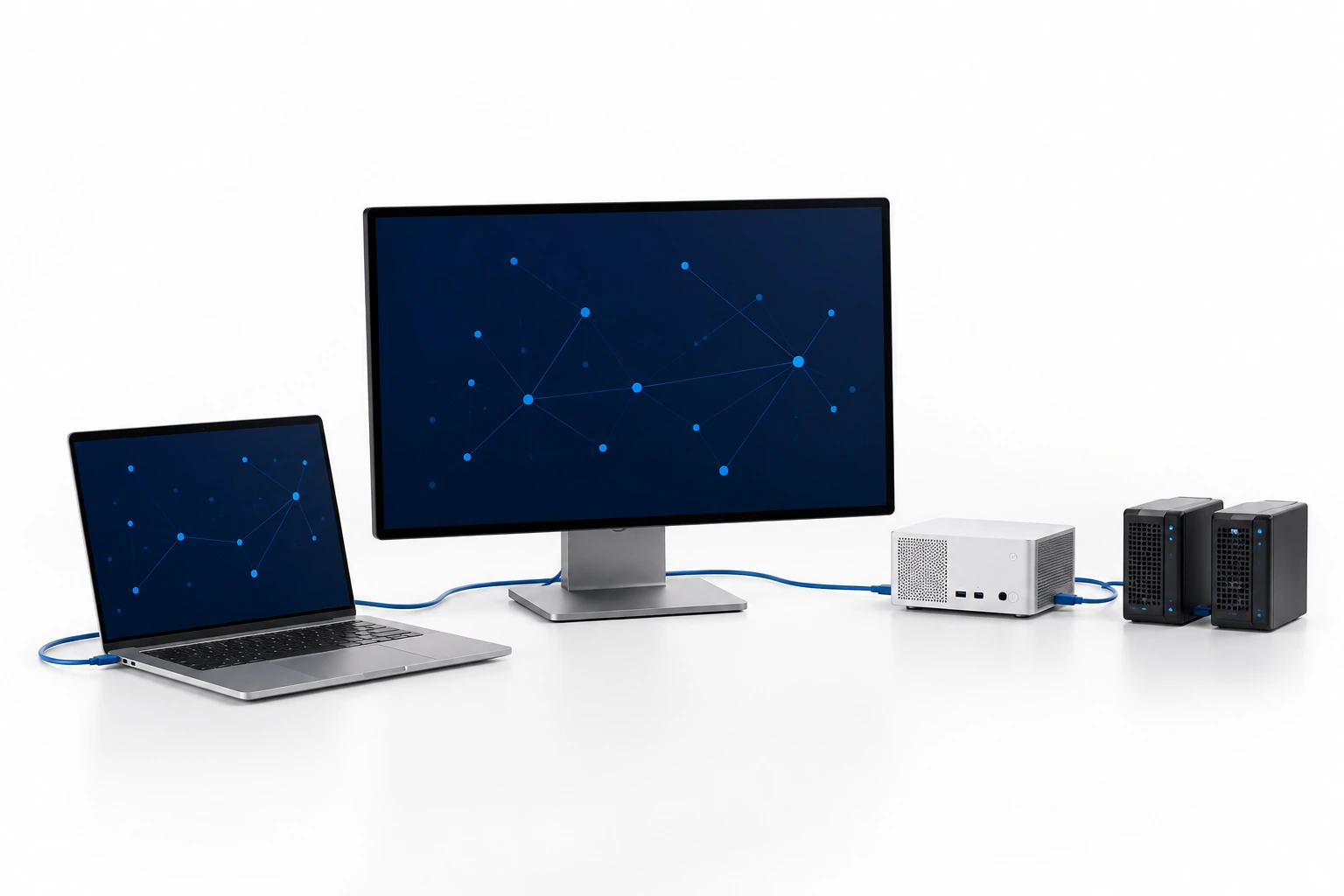
Illustrative connected workspace with desktop, operator laptop and endpoint computers
Remote accessEndpoint inventoryReviewed operationsSecurity context
INSIDE THE SOFTWARE

See how the workspace works.

Select a view to explore the actual interface. Every screenshot can be opened at a larger size.

THREE CONNECTED COMPONENTS

A clear role for every part.

The portal keeps administration and reported context together. The installed controller handles interactive work. The endpoint agent connects each enrolled computer to its client workspace.

Client portal

Inventory, groups, users, operations and security context.

Understand & organise

CyberCursor workspace

Identity, device scope, permissions and activity records.

Connect the workflow

CyberCursor Remote

Interactive desktop support, commands and supported file changes.

Investigate & act
CyberCursor Endpoint

Enrolled computers report inventory and measured telemetry to their workspace. Configured services provide remote connectivity and security evidence.

KNOW THE COMPUTER

A device profile with real depth.

A hostname is only the beginning. CyberCursor connects hardware identity, operating system information, installed applications and measured performance to one endpoint profile. Use that context to prepare support work and understand what changed.

  • Overview, Applications, Specifications and Processes views.
  • CPU, memory, storage and network measurements with timestamps.
  • Files, Terminal, Security and Remote desktop entry points.
  • Inventory and telemetry freshness remain visible beside the data.
Endpoint profile and performance overview Product interface · Example data
FROM CONTEXT TO CONNECTION

Support starts with the right target.

Support work moves between the portal and desktop app with the same endpoint identity.

  1. 01

    Identify

    Choose the client, device and reported context relevant to the issue.

  2. 02

    Confirm

    Select an assigned computer and an appropriate view or control session.

  3. 03

    Connect

    Use CyberCursor Remote for hands-on desktop access and supported operations.

  4. 04

    Review

    Follow session history, action results and the device’s latest report.

PEOPLE & PERMISSIONS

Give every operator a defined scope.

Keep administrators, managers and temporary guests connected to the computers they are responsible for. Device assignments and groups provide a practical way to separate support responsibilities without creating another asset catalogue.

  • Named accounts and multi-factor authentication.
  • Device and group assignments for management users.
  • Temporary guest access with explicit expiry.
  • View and control permissions remain separate.
Management users and assigned device scope Product interface · Example data
REVIEWED ENDPOINT OPERATIONS

Keep the request and the result together.

Software and script work starts with a versioned artifact. Reviewed recipes, target intent, approval and per-device outcomes make it possible to follow an operation from preparation through execution.

  • Review script and package revisions independently.
  • Select explicit targets and typed parameters.
  • Use a canary before proceeding across a broader set.
  • Inspect succeeded, partial, failed or unknown outcomes.
Operational jobs and execution states Product interface · Example data
SECURITY IN THE WORKSPACE

Follow the evidence back to the device.

Connected security services supply alerts, file-integrity observations and vulnerability records. CyberCursor keeps the imported source, severity, endpoint and review state together so an operator can investigate the signal in context.

  • Open a finding to review its evidence and source identifiers.
  • Keep current vulnerability state distinct from historical events.
  • Acknowledge a review; resolution follows provider evidence.
  • Check service freshness and endpoint coverage separately.
Explore security monitoring
Security findings and review status Product interface · Example data
WORKSPACES & GROUPS

Structure that follows your organisation.

01

Client workspaces

Keep company administration, enrolled endpoints and assigned operators in the appropriate client workspace.

Explore feature
02

Device groups

Organise computers around departments, offices or support responsibilities. Group license keys connect enrollment to the right destination.

Explore feature
03

Access records

Keep the identity, decision and event record available to the people authorised to review activity.

Explore feature
YOUR DEVICES. YOUR WORKSPACE.

A considered path to deployment.

Desktop controllers are available for Windows, macOS and Linux. Android supports attended endpoint sessions.

  1. 01

    Create your account

    Start a workspace and confirm the organisation that owns the endpoints.

  2. 02

    Create a license key

    Choose client enrollment or a group key for a specific destination.

  3. 03

    Install and enroll

    Install CyberCursor Endpoint, enter the key and name the computer.

  4. 04

    Enable your team

    Complete OS permissions, assign access and sign in to CyberCursor Remote.

Controller + endpoint

Windows

Remote desktop, inventory and device reporting. Complete endpoint installation and local setup before connecting.

Install on Windows
Controller + endpoint

macOS

Intel and Apple silicon installers. Screen Recording and Accessibility permissions control screen sharing and input.

Install on macOS
Controller + endpoint

Linux

amd64 and arm64 packages. X11 is required for the supported desktop screen-access workflow.

Install on Linux
Attended endpoint

Android

The device user accepts each session and screen-sharing prompt. Control also requires the accessibility service.

Install on Android
PRODUCT QUESTIONS

A closer look at the details.

What does the client portal manage?

The portal provides device inventory, groups, scoped users, reported performance, reviewed operational jobs, security findings and activity records. Interactive desktop sessions, terminal commands and supported file changes run through the installed controller.

Can I use different operating systems in one workspace?

Yes. The directory brings Windows, macOS, Linux and attended Android endpoints into the same workspace. Available actions depend on the operating system, installed component and local permissions.

How do endpoint agents join the correct client?

A client or group license key binds enrollment to its workspace. Enter the key and device name in CyberCursor Endpoint, then complete the platform’s local permissions.

How is access assigned?

Client administrators assign management users or guests to devices and groups. Remote-control permission and access expiry are explicit. The server applies account and resource scope to protected actions.

Are security findings available for every computer automatically?

Findings depend on a configured security service and correctly mapped endpoint coverage. The workspace distinguishes agent reporting, provider connectivity and the age of imported evidence.

Where can I review installation requirements?

The download pages provide platform installers, checksum information, signing notes and local permission requirements. The deployment guide explains enrollment and the responsibilities of each component.

KEEP EXPLORING

Go deeper into CyberCursor.

01

Desktop access

Explore the installed controller, session tools, files and history.

Explore feature
02

Endpoint management

Explore inventory, performance, reviewed jobs and rollout patterns.

Explore feature
03

Deployment guide

Follow the setup sequence from a workspace to an enrolled endpoint.

Explore feature