
ENDPOINT MANAGEMENTUnderstand every device.
Understand every device.
Make every action count.
Bring inventory, measured performance, software context and reviewed operational jobs into the same workspace. Investigate with the device in view, then follow the request through to its result.
14 days. No credit card required.
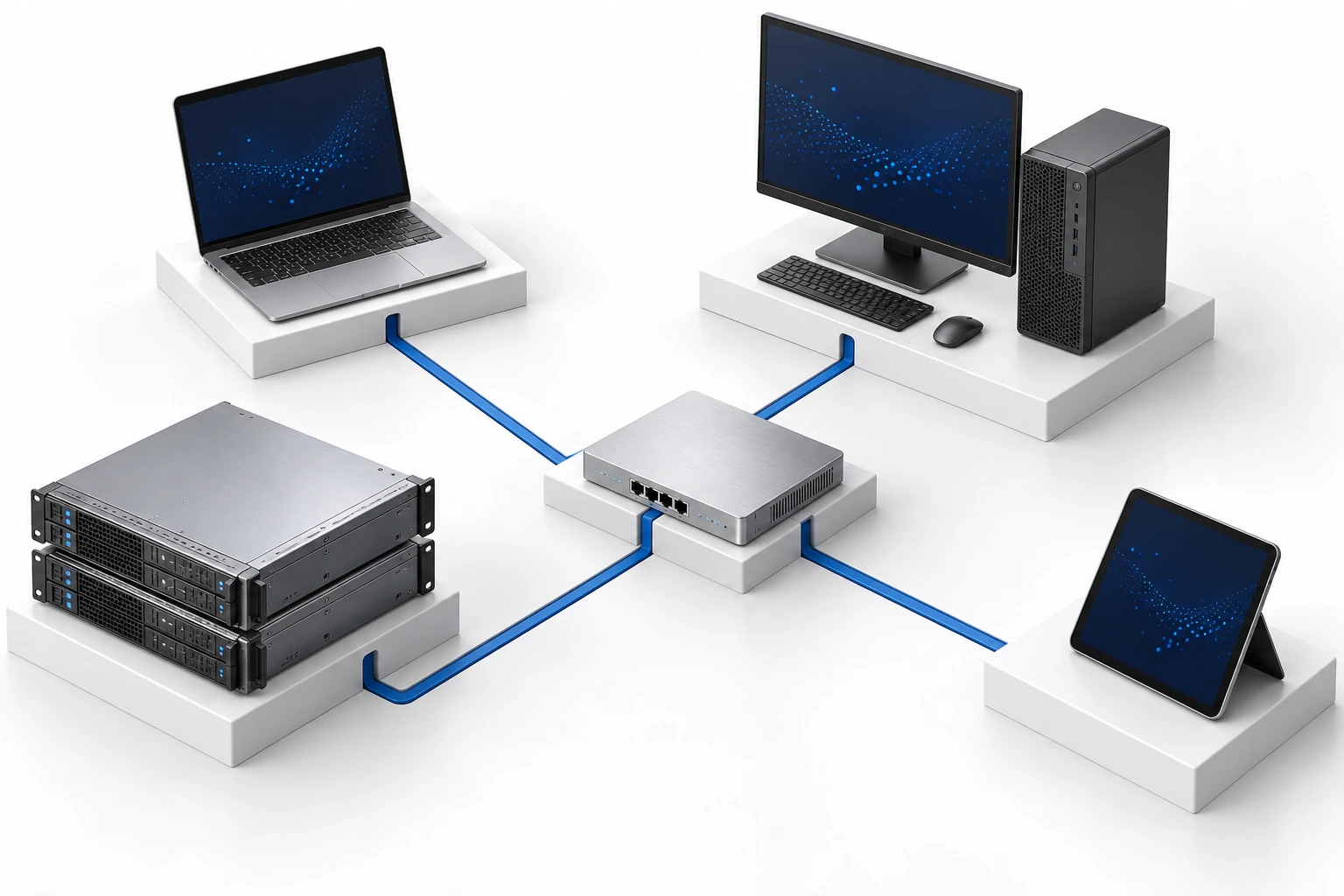
✓Hardware & software✓Performance context✓Device groups✓Reviewed jobs
INSIDE THE SOFTWARE
From directory to device detail.
Explore the management interface through five concrete workflows. Enlarge any screenshot for a closer look.
1 / 5
INVENTORY WITH IDENTITY
Go beyond the hostname.
The device profile connects manufacturer, model, serial, processor, operating system and architecture to its enrollment record. Use that identity to distinguish similar computers, prepare a support action or review the right installer.
- Search hardware identity from the endpoint directory.
- Review platform, architecture and reported OS version.
- Inspect hardware specifications and inventory freshness.
- Export supported profile information as JSON.
MEASURED ENDPOINT TELEMETRY
See the resources behind the symptom.
Review the measurements reported by the endpoint agent. CPU, memory, storage and network information describe different parts of a computer’s workload. Recent history adds context when a single sample is not enough.
- CPU and memory usage alongside recent history.
- Storage capacity, used space and available space per volume.
- Received and transmitted traffic with interface details.
- Collection and receipt times distinguish fresh from older samples.
A CLOSER INVESTIGATION
Find the process behind the load.
When a computer is slow, process context helps make the next step more specific. Review the reported process name, identifier and resource use in the same profile as the hardware and performance overview.
- Process name and PID.
- CPU utilisation and memory bytes.
- Reported process count.
- A direct path back to the device overview.
APPLICATIONS & PATCH VISIBILITY
Know what the endpoint reports.
Installed software provides the context for updates and support. Review names, versions and publishers, then inspect available operating-system patch-report information. The profile distinguishes a reported scan from missing or incomplete collection.
- Installed application versions and publishers.
- Software collection completeness.
- Available OS patch items and scan timestamps.
- Reported restart state where the platform provides it.
Patch reporting and coverage depend on the endpoint platform. Review the reported state before planning an update.
VERSIONED SCRIPT & PACKAGE LIBRARY
Start from a reviewed artifact.
A software operation begins with a specific revision. The library keeps scripts and packages with version, digest and review status. Content-addressed artifacts make the requested revision explicit.
- Script and package filters.
- Version and SHA-256 digest.
- Signed recipe and execution constraints.
- Independent review status for the revision.
DELIBERATE CHANGE AT SCALE
Review. Target. Test. Inspect.
Explore the steps behind a reviewed operational job.
Review the recipe
Start with an independently reviewed artifact revision. Its recipe defines the permitted operation and the inputs it accepts.
- Pinned artifact revision and digest.
- Typed parameters and bounded execution.
- Independent artifact review.
Freeze the target intent
Make the requested computer set, parameters and expiry explicit before execution. The job is tied to its target intent.
- Specified enrolled endpoints.
- Intent digest and expiry.
- Independent approval for mutating jobs targeting more than five devices.
Use a canary first
A canary provides a controlled first target before a broader rollout. Follow its outcome before progressing to the remaining targets.
- An explicit initial endpoint.
- Broader dispatch follows a successful canary.
- Cancellation and failure states remain visible.
Inspect each outcome
The final job state is only a starting point. Open target results to see which computers returned a result and which need investigation.
- Per-device output and status.
- Partial, failed, cancelled or unknown outcomes.
- A result stays linked to the original job and artifact.
OPERATIONS & RESULTS
A request is not the same as success.
Use the operations view to distinguish an awaiting approval job from work that is queued, running or complete. Target outcomes keep partial execution visible when a computer is offline, a command fails or a result cannot be confirmed.
- Status filters for active work, approval and completed jobs.
- Explicit target count and creation time.
- Per-target results for a closer review.
- Clear attention states for failed, partial or unknown outcomes.
ORGANISE THE SUPPORT SURFACE
Groups with a practical purpose.
Keep computers organised around the way your team supports them. Use departments, sites or customer responsibilities as the starting point, then apply the same grouping to enrollment and assigned access.
- Group membership in the device directory.
- Client and group enrollment keys.
- Assignments for named management users.
- A consistent target identity across support and investigation.
ENDPOINT ENROLLMENT
Build a useful inventory from day one.
Enrollment, reported identity and local permissions provide the foundation for the workflows shown here.
- 01
Choose a workspace
Confirm the client and organisation responsible for the computers.
- 02
Create an enrollment key
Use a client key or choose a group destination.
- 03
Install the agent
Enroll with the key and device name on the supported platform.
- 04
Review the first report
Confirm identity, inventory collection and telemetry freshness.
Windows
Remote desktop, inventory and device reporting. Complete endpoint installation and local setup before connecting.
Install on WindowsmacOS
Intel and Apple silicon installers. Screen Recording and Accessibility permissions control screen sharing and input.
Install on macOSLinux
amd64 and arm64 packages. X11 is required for the supported desktop screen-access workflow.
Install on LinuxAndroid
The device user accepts each session and screen-sharing prompt. Control also requires the accessibility service.
Install on AndroidPRODUCT QUESTIONS
A closer look at the details.
What information appears in the inventory?
The endpoint profile includes reported hardware identity, OS information, installed applications, available patch information and measured resource context. Collection details and timestamps identify which data was reported and when.
Does an online badge prove every feature is working?
No. Online status indicates recent endpoint contact. Inventory freshness, telemetry, remote connectivity and security-provider coverage have their own evidence and timestamps.
Can I automatically patch every application?
The current workspace provides software inventory, available OS patch-report context and reviewed script or package operations. It does not expose a comprehensive third-party patch catalogue or automatic OS patch enforcement.
How are changes reviewed?
Artifacts carry an independently reviewed revision. Jobs bind explicit targets, parameters and expiry. Mutating jobs targeting more than five devices require independent job approval, and canary workflows gate a broader rollout.
What happens if only some targets complete?
Inspect the individual target outcomes. Partial, failed, cancelled, expired and unknown result states remain visible rather than being presented as a successful full rollout.
Does endpoint management include MDM?
The workflows described here are agent-based desktop inventory and operations. Mobile-device enrollment policies, Apple DDM and full MDM administration are separate capabilities and are not described as part of this offering.
KEEP EXPLORING
Go deeper into CyberCursor.
Device inventory
Explore endpoint identity, reported specifications and software context.
Explore featureApproved operations
Understand reviewed recipes, job intent and result evidence.
Explore featurePerformance monitoring
Explore endpoint telemetry, timestamps and resource measurements.
Explore feature