Management portal
Fleet overview, performance, inventory, groups, licenses and administrative context. File listings are read-only.

Create groups your team understands, bind new endpoints during enrollment and assign management access around real responsibilities.
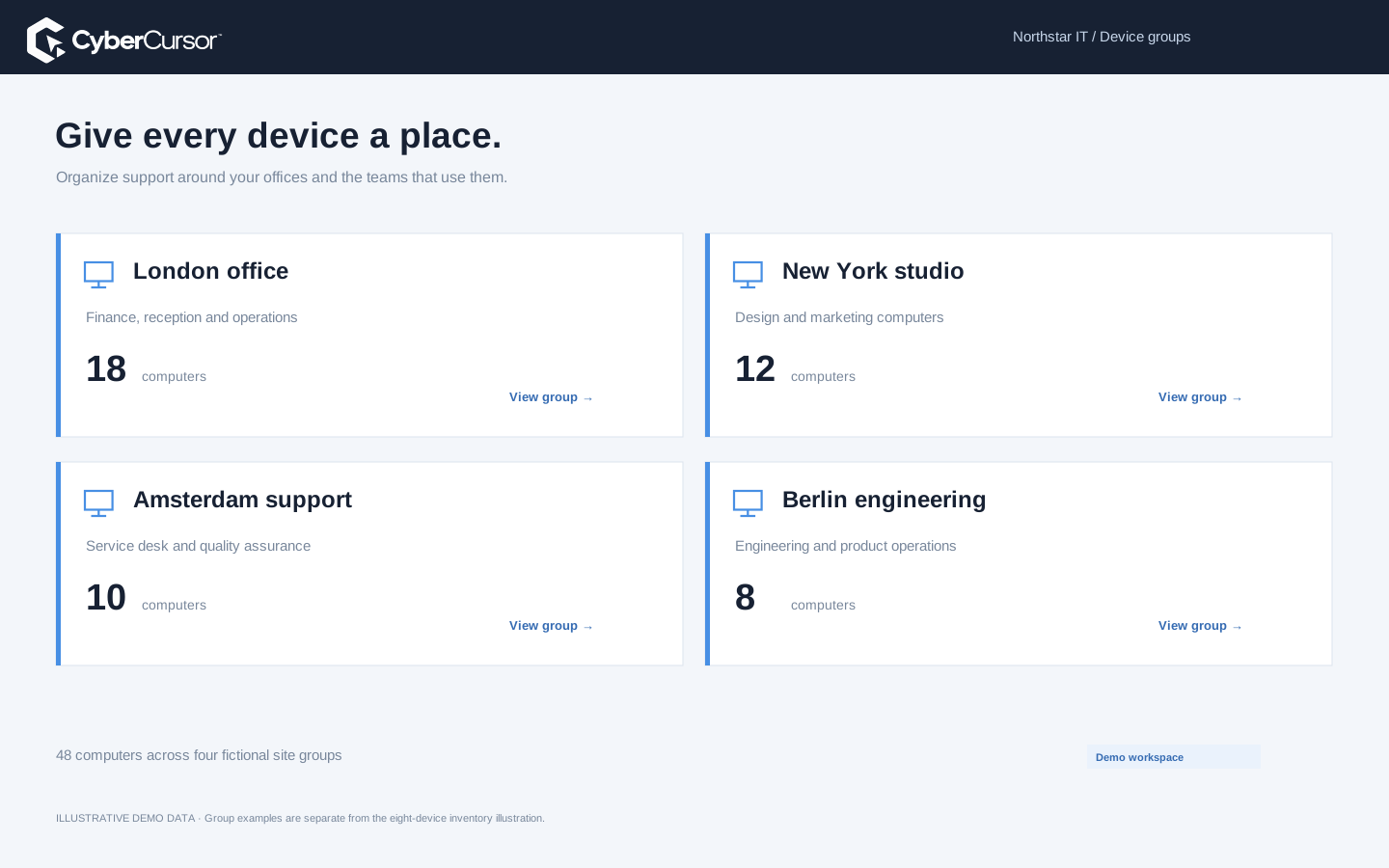
Groups are most useful when their meaning is obvious to the people who use them. A small organization might group endpoints by office and support owner; a distributed team might separate locations, departments and an initial test ring. CyberCursor provides client-scoped static groups so the device list, enrollment choices and management assignments can reflect that operational model. Begin with a short naming convention and a clear purpose for each group. Avoid making groups stand in for information that the agent already reports, such as operating-system architecture, unless the distinction changes a workflow. Review which devices belong before using a group as a target. A simple, maintained structure helps a technician find the right machine and gives an administrator a scope that can be checked before change.
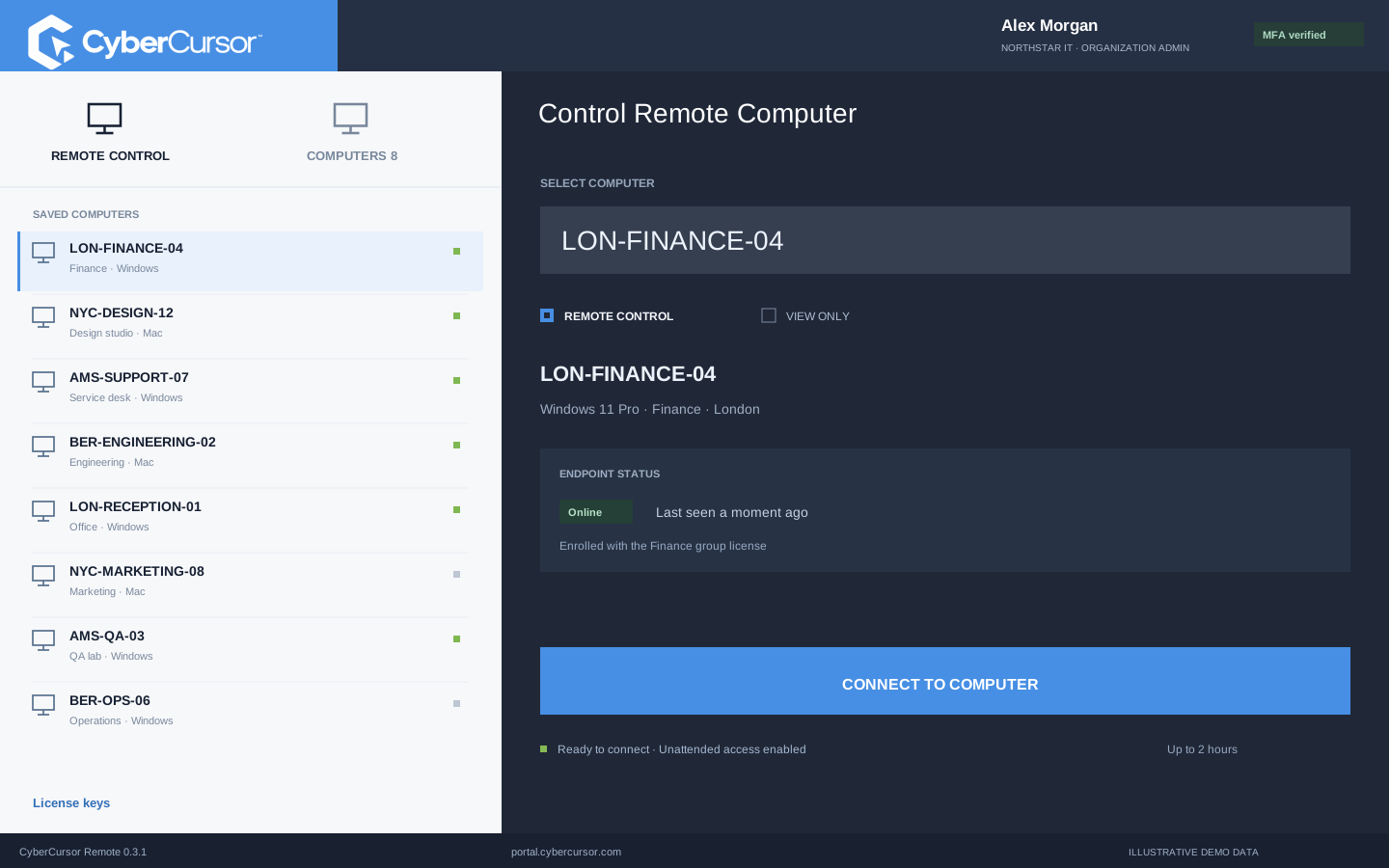
A group license key connects installation with the intended client structure. Create the group first, then create its enrollment key in the client portal. When the endpoint installer receives that key and an agent name, the server assigns the new device to the key’s client and group during enrollment. This reduces the manual step of sorting newly installed endpoints after they appear. A client-wide primary key is also available when group assignment should be decided later. Treat both kinds of key as protected installation credentials. Do not publish them on a download page or place them in an openly shared installer. Plan how your deployment system will deliver and remove temporary enrollment input, then confirm that each real device appears in the intended group with fresh reporting.
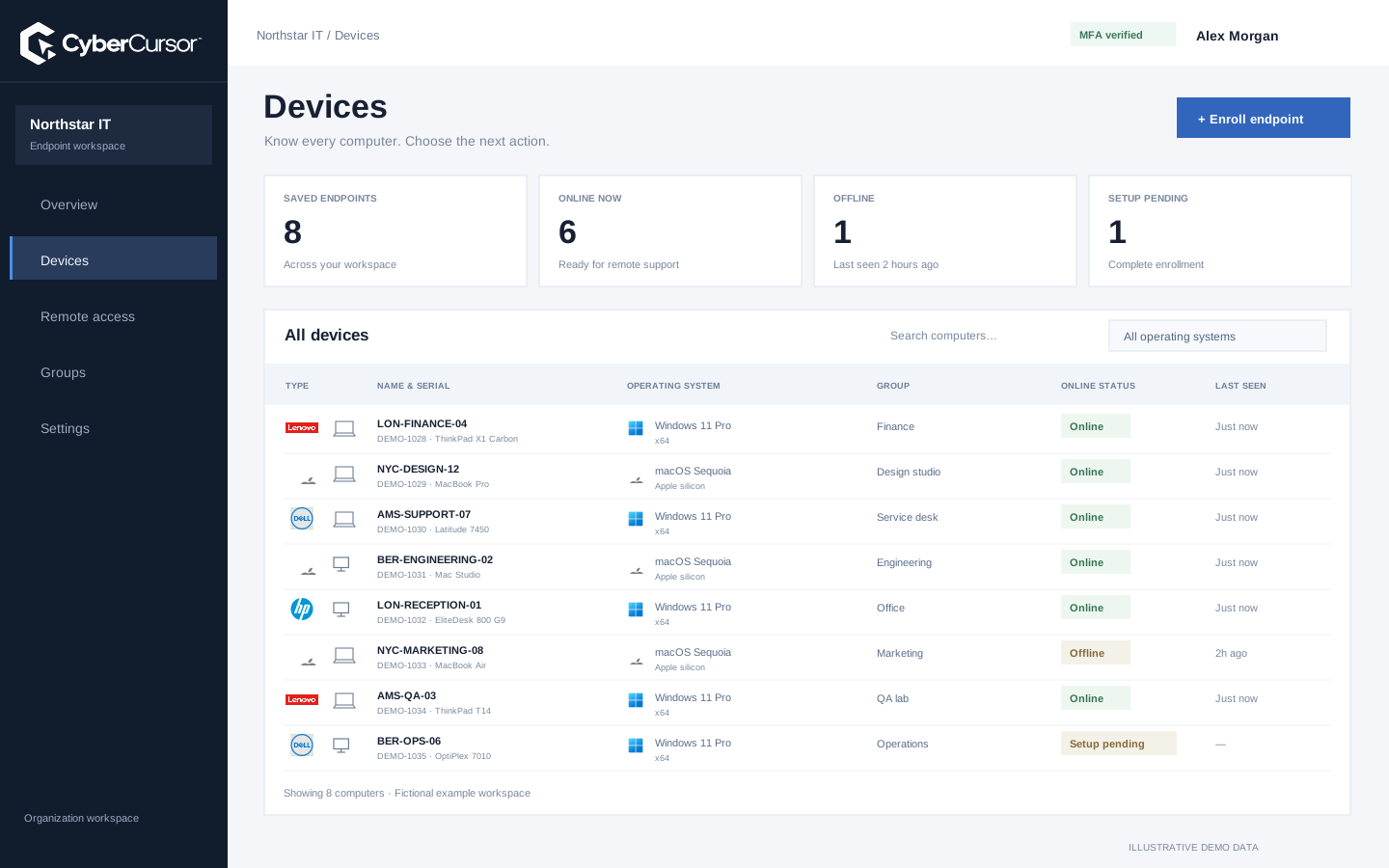
A client administrator can give a management user selected endpoints or groups according to their work. A site technician can receive the site’s group, while a specialist can receive a narrower set of individual devices. Current membership and group scope are checked when remote access is requested and during active authorization. Removing a device from an assigned group changes the applicable access scope; a saved list should not become an enduring permission after the assignment changes. Guests are handled differently: they receive selected endpoint shares with an explicit expiry rather than broad group administration. This distinction helps teams separate regular operational responsibility from a temporary support visit. Review assignments when people leave a role, a device moves sites or an outside specialist’s work is complete.
Fleet overview, performance, inventory, groups, licenses and administrative context. File listings are read-only.
Windows and Mac apps for interactive screen access, terminal commands and bounded file modifications.
Identity, reports and authorized actions on the owned computer. Availability depends on endpoint readiness and OS permissions.
A group is a convenient way to discover a set of endpoints, but an operational job still needs an explicit target review. The CyberCursor automation preview freezes the selected target list for a job so its review refers to a particular intended change, rather than a group whose membership might later change. Check device availability, platform, architecture and the recipe’s suitability before requesting execution. A canary device can help reveal an unsuitable change before additional targets proceed. Current lab fleet dispatch covers a bounded workflow; it does not establish unrestricted production-scale package rollout. Use groups to make preparation clearer, then rely on the job’s recorded targets and results to understand what was actually attempted. Separate unavailable devices and uncertain outcomes from successful completion.

A device group is not a one-time installation label. Laptops move between teams, stores change ownership and support responsibilities are reassigned. Set a regular administrative review that compares the group structure with current operational ownership. Use device names, reported hardware and serial details to resolve duplicates or ambiguous records before making membership changes. Keep offline samples clearly separate from enrolled endpoints so a demonstration record does not enter an operational target list. When a group key is retired, revoke it to prevent new installations through that credential; revocation does not automatically disconnect already enrolled devices. Manage those devices and their memberships deliberately. This gives the team a stable relationship between enrollment, inventory and access without implying that every later organizational change has been detected automatically.
Organizations, clients and high-level administration.
Assigned endpoints, groups, enrollment keys and operational workflows.
Explicitly shared endpoints with a scoped expiry, rather than whole-client access.
For a first pilot, create a group that corresponds to one owned test environment and enroll a Windows or Mac endpoint using its group key. Confirm the chosen name, client ownership and group membership, then assign a management user only to that group. Verify that the user can find permitted endpoints and cannot access an unrelated one. Move or remove a disposable endpoint membership and observe how the assignment changes. Test a separate temporary guest share without giving the guest group-administration rights. This small exercise establishes whether the structure matches the way your team works. Once the naming and assignment model are clear, extend it cautiously to further sites. Contact connect@cybercursor.com with your intended site, department and support boundaries for a guided evaluation.
Operational details matter as much as the interface.
The current pilot uses client-scoped static groups. Rule-based dynamic grouping is not advertised as released.
Yes. A key created for an existing group binds a newly enrolled endpoint to that client and group during enrollment.
Current guest shares are endpoint-specific and expire. Management users can receive selected endpoint or group assignments.
No. Revocation blocks future installations and unused enrollment grants. Existing endpoints and their group memberships must be managed separately.
Connect this workflow to the rest of your endpoint workspace.
Understand Windows and Mac endpoints with hardware, operating-system, software and identity details in one client workspace.
Explore FEATURESPILOTInvestigate CPU, memory, storage, network and process activity with endpoint reports and clear freshness.
Explore FEATURESPILOTBrowse endpoint folders in the portal and use CyberCursor Remote for authorized file uploads and modifications.
ExploreStart with a conversation about your fleet, your workflows, and a controlled pilot.