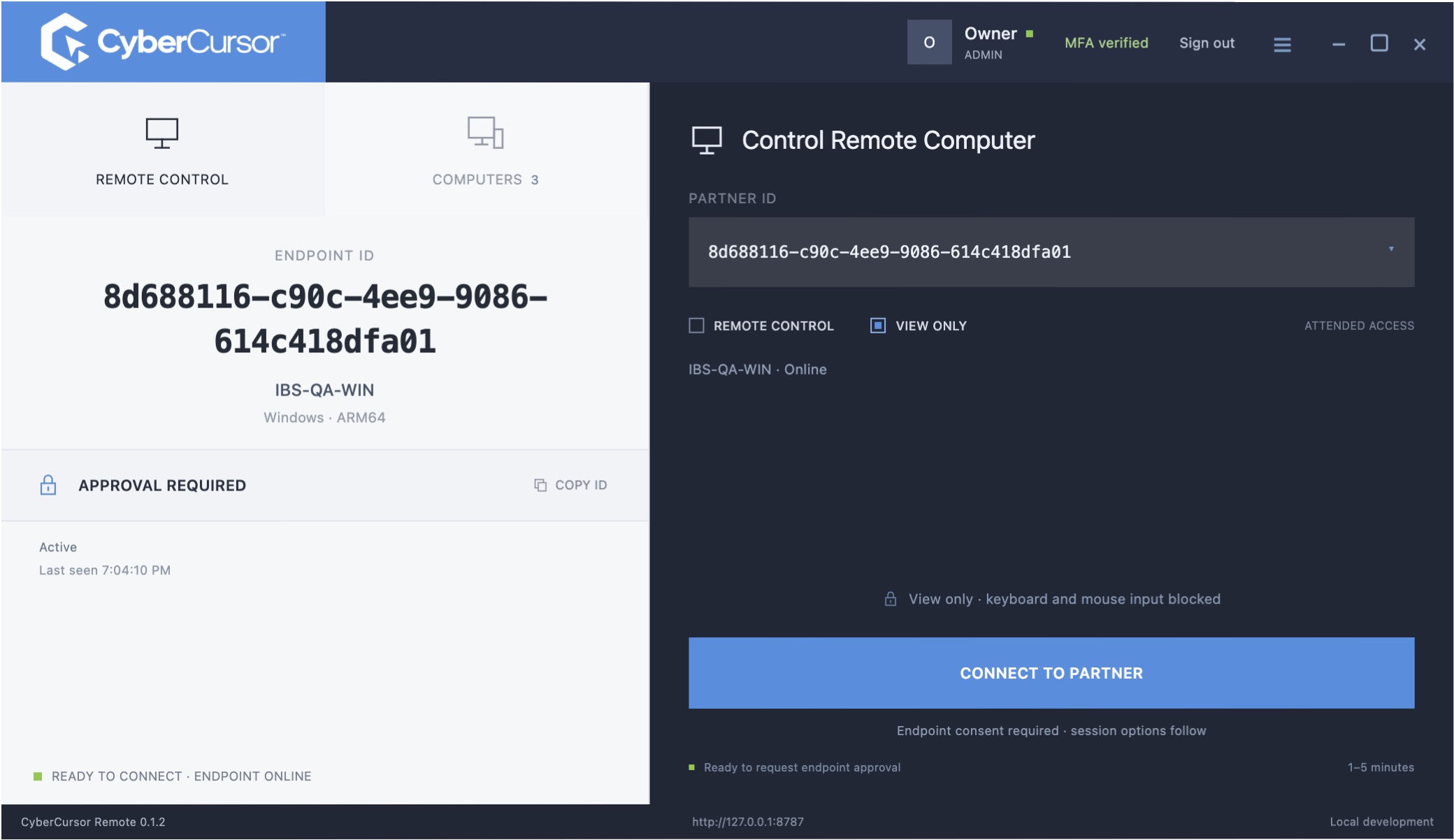
1. Choose the operator build
Use Windows x64 for an Intel/AMD Windows PC, Windows ARM64 for Windows on ARM, Mac Apple silicon for M-series Macs, or Mac Intel for Intel Macs. The combined Windows installer includes both architectures.
The published 0.1.2 builds are unsigned evaluation software. Review the checksum before installation and complete any operating-system trust prompts yourself.
2. Configure your workspace
Open CyberCursor Remote. Enter https://portal.cybercursor.com in CyberCursor server and select Connect server. Public HTTPS does not need a private laboratory CA certificate.
3. Sign in
Choose Sign in with your organisation. Use your assigned account and authenticator code. An initial owner login also requires setting a personal password and authenticator. No public self-registration is enabled.
4. Understand endpoint readiness
The desktop app lists enrolled endpoints in your scope. An empty fleet is expected before production enrollment. Lab enrollment credentials and endpoint installers are separate from this hosted workspace.
5. Evaluate support deliberately
Verify identity, readiness, requested mode, duration and endpoint consent. Production screen sharing and input control remain acceptance work; installing the controller alone does not establish an operating remote session.
Need help?
Share your platform and pilot requirement using the contact page. Do not put passwords, private keys, patient information or customer telemetry in the public contact form.
Choose your installer